




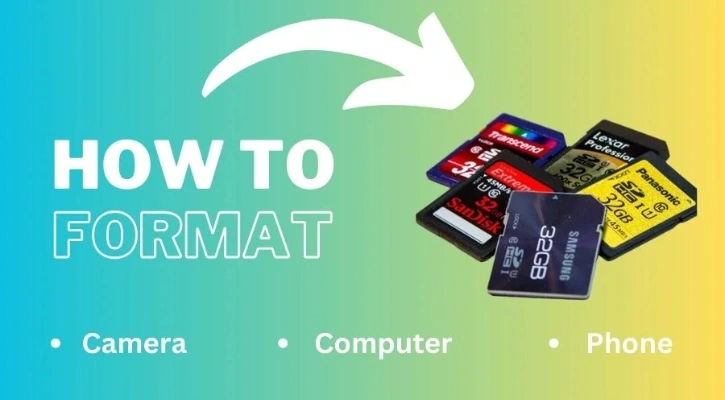
How to Format a Memory Card: Complete Guide
Sometimes, formatting is the only option left to make your memory card work again. At other times, you need to format your memory card to remove all the old files at once. Here is “How To Format A Memory Card” to help you resolve this issue. Formatting a memory card erases all the data stored on it.
So, you will get a fresh and clean space to store your files again. Formatting the memory card seems to fix the problems of corrupted files and reading problems.So, how can you do it on your camera, computer, and phone? Here you will get the detailed procedure to safely format your memory for different devices. Let’s start.
When Do I Need to Format My Memory Card?
You should format a memory card before first use, when switching to a new camera, after backing up a full card, or if it becomes slow, corrupted, or shows errors. Formatting helps maintain performance and ensures compatibility with your device.
Things to Consider Before Formatting
- Back up your files first because formatting erases all data.
- Format the card in your camera for the best compatibility.
- Don’t format unnecessarily. Regular file management is often enough.
- Replace the card if it continues to show errors after formatting.
How to Format a Memory Card on Your Phone?
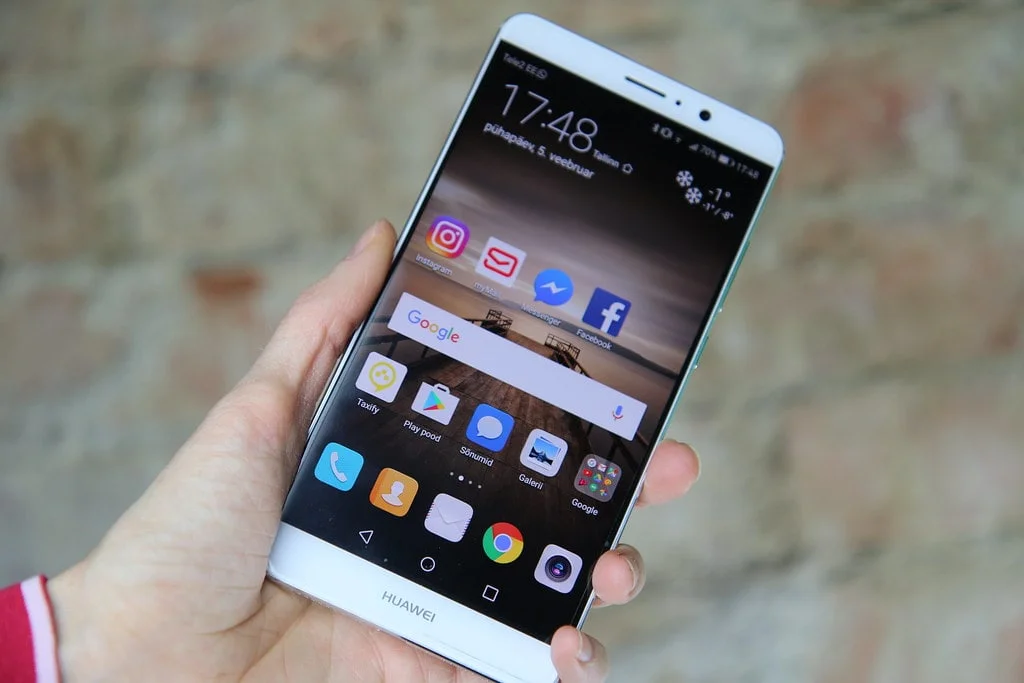
Formatting a memory card on your phone is super easy if you know the process. Let’s see how to format an SD card on Android, iPhone, and other operating systems:
Andoird
Here is how to format an SD card Android:
- Step 1: Open Settings on your Android device.
- Step 2: Go to Storage or Device Storage.
- Step 3: Select your SD Card (it may also appear as Portable Storage).
- Step 4: Tap the three-dot menu or the SD card settings, then choose Format.
- Step 5: Confirm your choice and wait for the formatting process to finish..
iPhone
Well, iPhones don’t have built-in storage for SD cards. Here you will get internal storage and iCloud for storing your data. So, you cannot format an SD card directly on your iPhone. However, the iPhone has a Lightning port to connect with the SD card reader and transfer files. Thus, you can then view, copy, or move files between the SD card and your iPhone’s storage. So, you will have to insert the memory on other devices to format the memory card.
Huawei
Here is how to format an SD card Huawei:
- Step 1: Insert the SD card into the SD card slot on your Huawei phone.
- Step 2: Open the Settings app on your Huawei phone.
- Step 3: Locate “Storage”:
- Step 4: Find “Format”
- Step 5: Confirm Formatting
On some Huawei phones, you can also format the memory card from the files app. Navigate to the SD card within the Files App. Then tap and hold on the SD card to select the SD card and select Format from the three dots.
Format an SD card for Samsung Galaxy
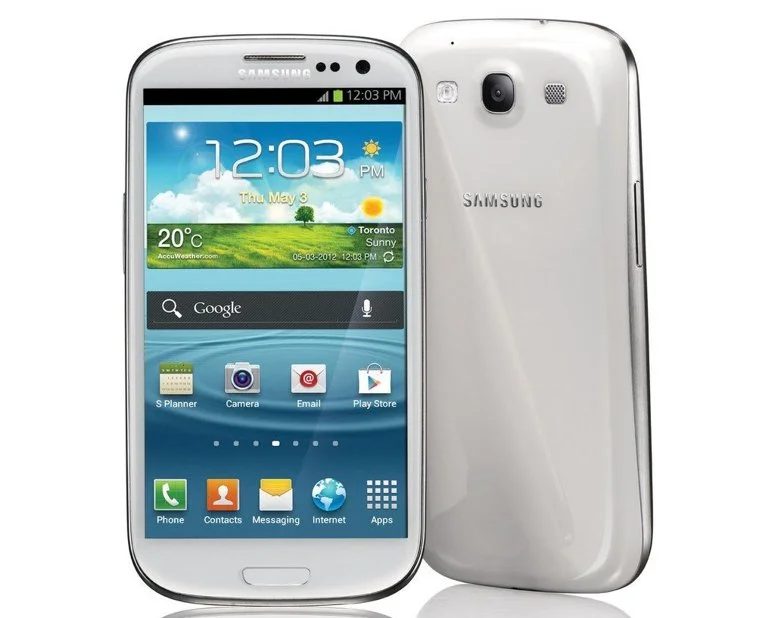
Here is how to format an SD card for Samsung Galaxy:
- Step 1: Open Settings on your Samsung device.
- Step 2: Go to Battery and Device Care (or Device Care).
- Step 3: Tap Storage, select your SD Card, then open the three-dot menu and choose Advanced.
- Step 4: Tap Format.
- Step 5: Confirm the action and wait for the formatting process to complete.
How To Format A Memory Card Using a Computer
There are different ways to format a memory card using a computer. Let’s learn how to format an SD Card on a PC:
Using CMD on Windows
Formatting Using DiskPart:
- Step 1: Insert the memory card into a card reader and connect it to a USB port.
- Step 2: Open the Command Prompt by typing “cmd” in the search bar (Windows key + S).
- Step 3: Right-click on “Command Prompt” and select “Run as administrator.”
- Step 4: Type “diskpart” and press Enter to open the DISKPART utility.
- Step 5: Type “list disk” and press Enter to display all connected disks.
- Step 6: Identify the disk number corresponding to your SD card.
- Step 7: Select the SD card by typing “select disk X” (replace X with the disk number).
- Step 8: Optionally, clean the SD card by typing “clean” and pressing Enter.
- Step 9: Create a new partition by typing “create partition primary” and pressing Enter.
- Step 10: Format the partition by typing “format fs=Y (quick)” and pressing Enter.
- Step 11: Optionally, assign a drive letter by typing “assign letter=Z” and pressing Enter.
- Step 12: Exit Diskpart by typing “exit” and pressing Enter.
Format an SD Card on Windows 10 and 11
Formatting Using File Explorer:
- Step 1: Go to This PC to look for your SD card drive.
- Step 2: Right-click the SD card to select it.
- Step 3: Choose “Format”
- Step 4: Click “Start”
Mac
Here’s how to clear an SD card on a Mac using Disk Utility:
- Step 1: Insert your SD card into your Mac’s built-in SD card slot or a USB card reader connected to your computer.
- Step 2: Navigate to “Applications” > “Utilities” and select “Disk Utility”.
- Step 3: Select the SD card
- Step 4: Click the “Erase” button: This button is located in the top toolbar of the Disk Utility window.
- Step 5: Choose a format named “FAT32″. Compatible with most devices, but has a 4GB maximum file size limit. AND “exFAT” Supports larger files than FAT32
- HFS+: This is the default format for Mac drives but may not be compatible with other devices
- Step 6: Click “Erase”
How to Format Memory Card on Camera
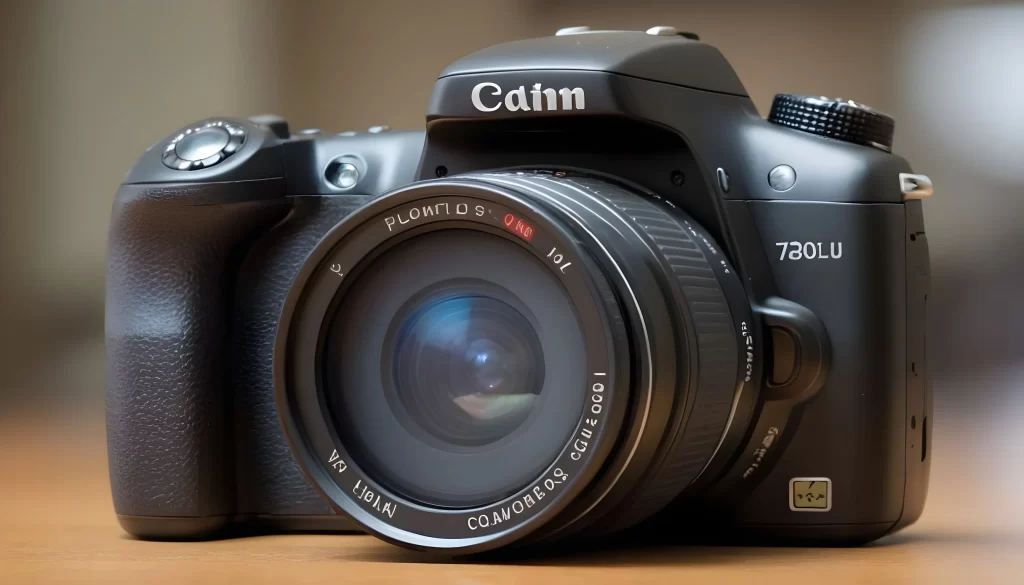
You can easily format the memory card directly on your camera. Here’s a general guide on how to format SD card in Camera:
- Step 1: Turn on your camera and access the menu settings.
- Step 2: Navigate to the setup menu or settings. It might be represented as a briefcase icon.
- Step 3: Find the format option. In some models of cameras, you may find it as:
- Format (most common)
- Format Memory Card
- Memory Card Tool > Format
- Initialize
- Step 4: Select the memory card
- Step 5: Confirm formatting
Why Does It Show “Camera Can not Format the SD card”?
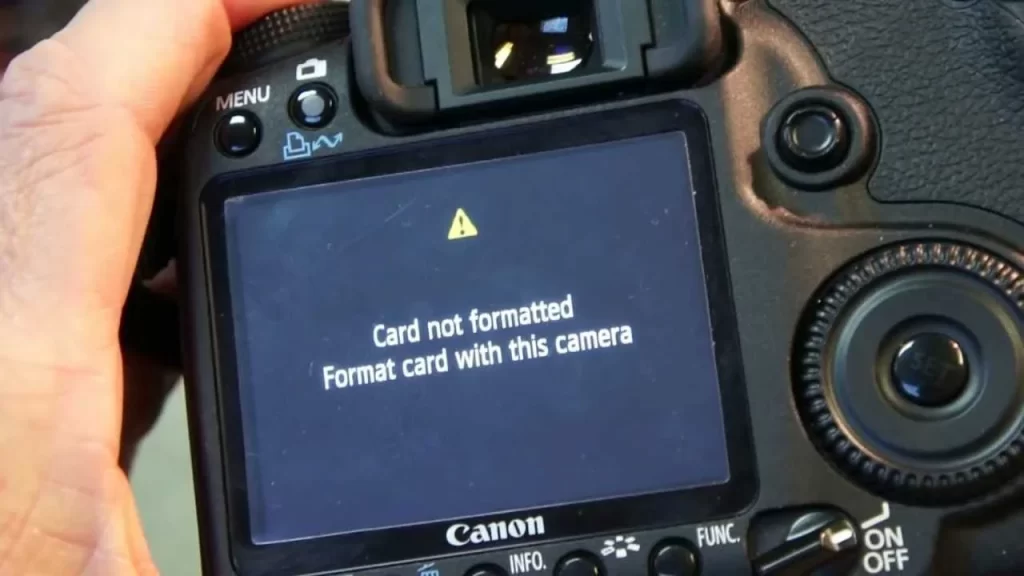
Here are the reasons that may cause the formatting failure:
- The SD Card may be write-protected.
- The low battery issue may cause this problem.
- The camera can’t read the card’s format. Try formatting to FAT32 on your computer.
- The SD card may be corrupted.
Format Write-protected Memory Card
Sometimes, it appears that the memory card is write-protected. In this situation, first, you have to remove the write protection. I suggest you first unplug your memory card and look for a small physical switch in it. Check if the switch is in the “locked” position (usually down). If so, slide it to the “unlocked” position (usually up).
If there is no physical lock, gently rub on the pins of the SD card using an eraser. Then insert it again. If this solution does not work, use a card reader and try to insert it into other computers.
- You can also use write protection removal tools such as AOMEI and EaseUs.
- Removing write protection using Disk Management (Windows):
- Open the Start menu and search for “Disk Management”.
- Locate your memory card drive in the list.
- Right-click the drive and select “Properties”.
- Go to the “Security” tab.
- Ensure the “Write” permission is allowed for your user account.
Using Command Prompt (Windows)
Type the following commands one by one, pressing Enter after each:
- disk part
- list disk (This will show a list of disks)
- select disk N (Replace N with the number corresponding to your memory card)
- attributes disk clear read-only (This attempts to remove write protection)
- Type exit to close Diskpart.
How to Retrieve the Formatted Data?
Well, it may happen that you have removed your important data during formatting the memory card. Do not worry. You can retrieve the deleted data. However, there is no guarantee of retrieving the data in the same order. It depends on the previous storage occupancy of the card.
Use Data Recovery Software
Install a trusted data recovery tool and scan the formatted memory card. Many programs can recover deleted photos, videos, and other files, although results vary depending on the card’s condition.
Contact a Professional Recovery Service
If the files are valuable and software cannot recover them, consider a professional data recovery service. These services offer the best chance of recovery but are usually more expensive.
Final Thoughts
So, this is how to format a memory card on different devices. Here I have tried to provide you with generalized information on this issue. However, when you try to format your memory card, back up the important files. Also, do not format your memory at an excessive frequency. It will affect the card’s performance.